DNS Options in Obscura
Last updated:
- Obscura uses Mullvad’s DNS to block ads, trackers, malware and more (more details)
- You can add custom DNS via a system profile on Apple devices (more details)
- Browser DNS resolution and DNS caching can prevent Obscura’s DNS from taking effect (troubleshooting steps)
Obscura’s Built-in DNS
Section titled “Obscura’s Built-in DNS”Our DNS allows you to block ads, trackers, malware, gambling, adult content and social media on your device. To enable DNS blocking in Obscura, simply follow these steps.
-
Open the Obscura app
-
Navigate to the Settings tab
-
Under the DNS Server section, enable Use Obscura DNS
-
Choose the categories you would like to have blocked
What Blocklists Do We Use?
Section titled “What Blocklists Do We Use?”We use Mullvad’s DNS servers to provide DNS for Obscura, so we offer the same blocklists as Mullvad.
As of June 2026, the lists include EasyList, Hagezi, AdGuard, OISD, URLhaus and Mullvad’s custom tracker blocklist.
You can find the specific lists used for each category on Mullvad’s DNS-blocklists repository.
Using Custom DNS via an Installed DNS Profile
Section titled “Using Custom DNS via an Installed DNS Profile”Most DNS providers (e.g. NextDNS) provide a DNS profile that you can download and enable on your Apple device. To use custom DNS in Obscura with an installed custom DNS profile, follow these steps.
-
Open the Obscura app
-
Navigate to the Settings tab
-
Under the DNS Server section, enable Use installed custom DNS profile
-
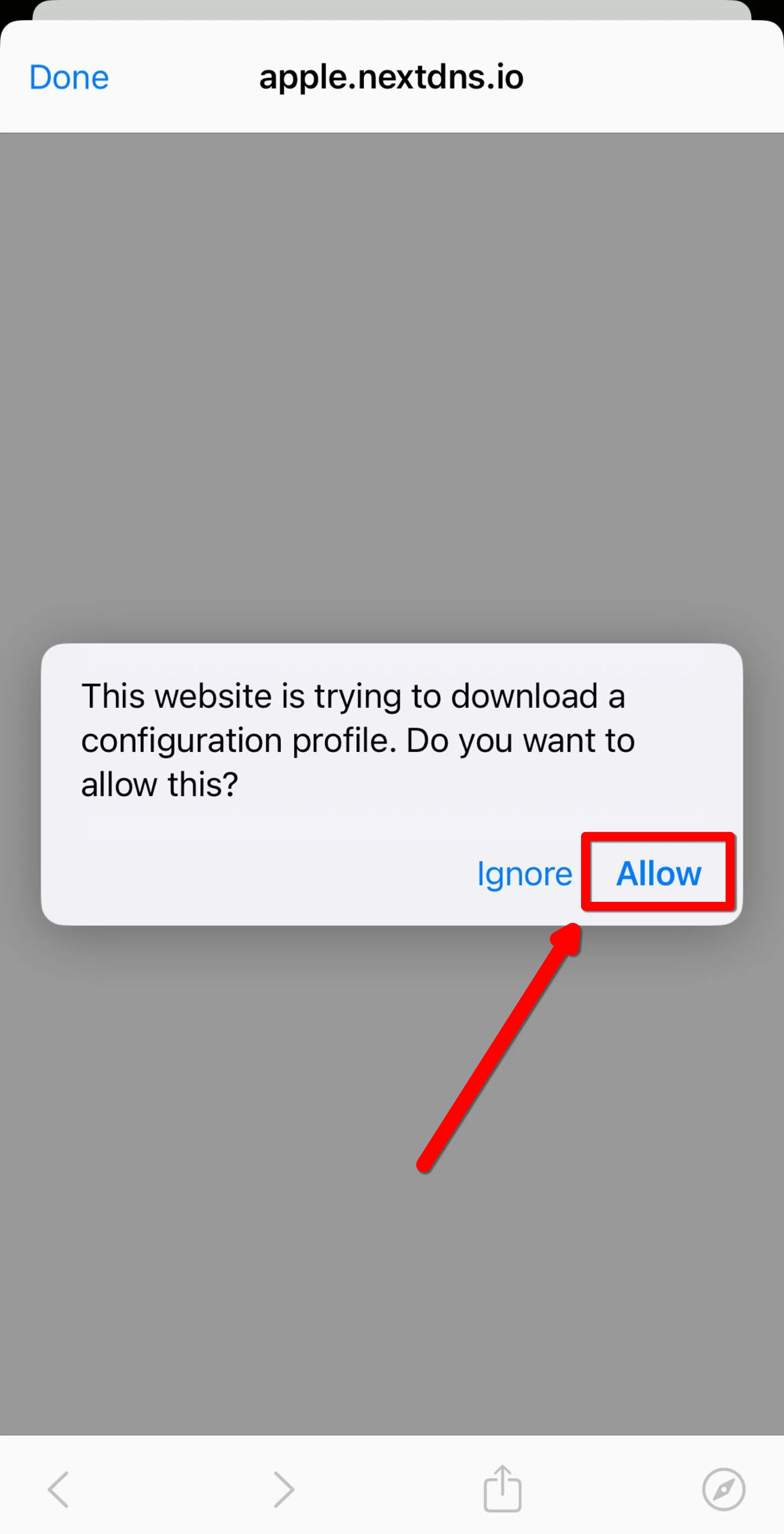
Download your custom DNS profile and tap Allow when prompted
-
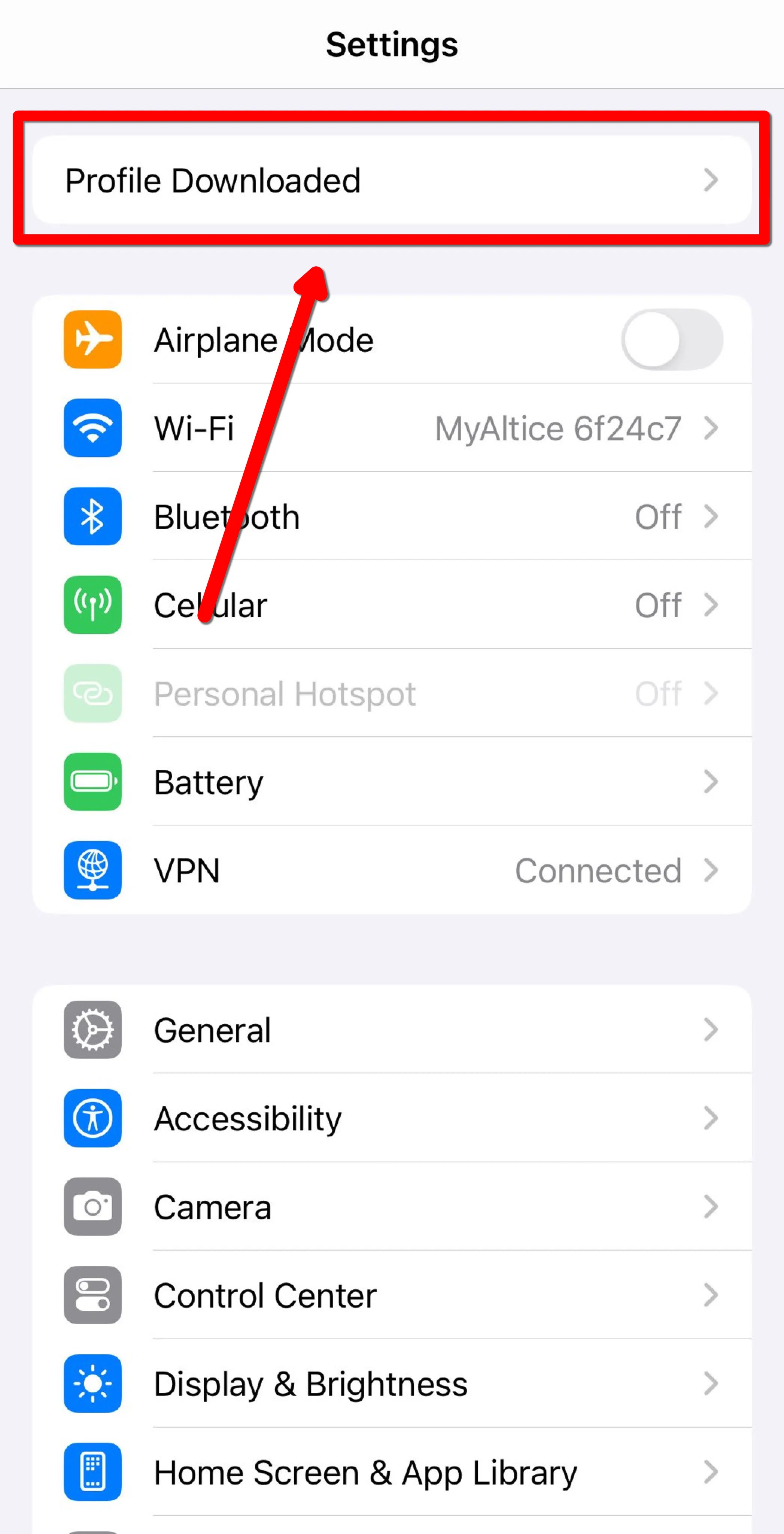
In the Settings app, tap the Profile Downloaded button on the top of the homepage
-
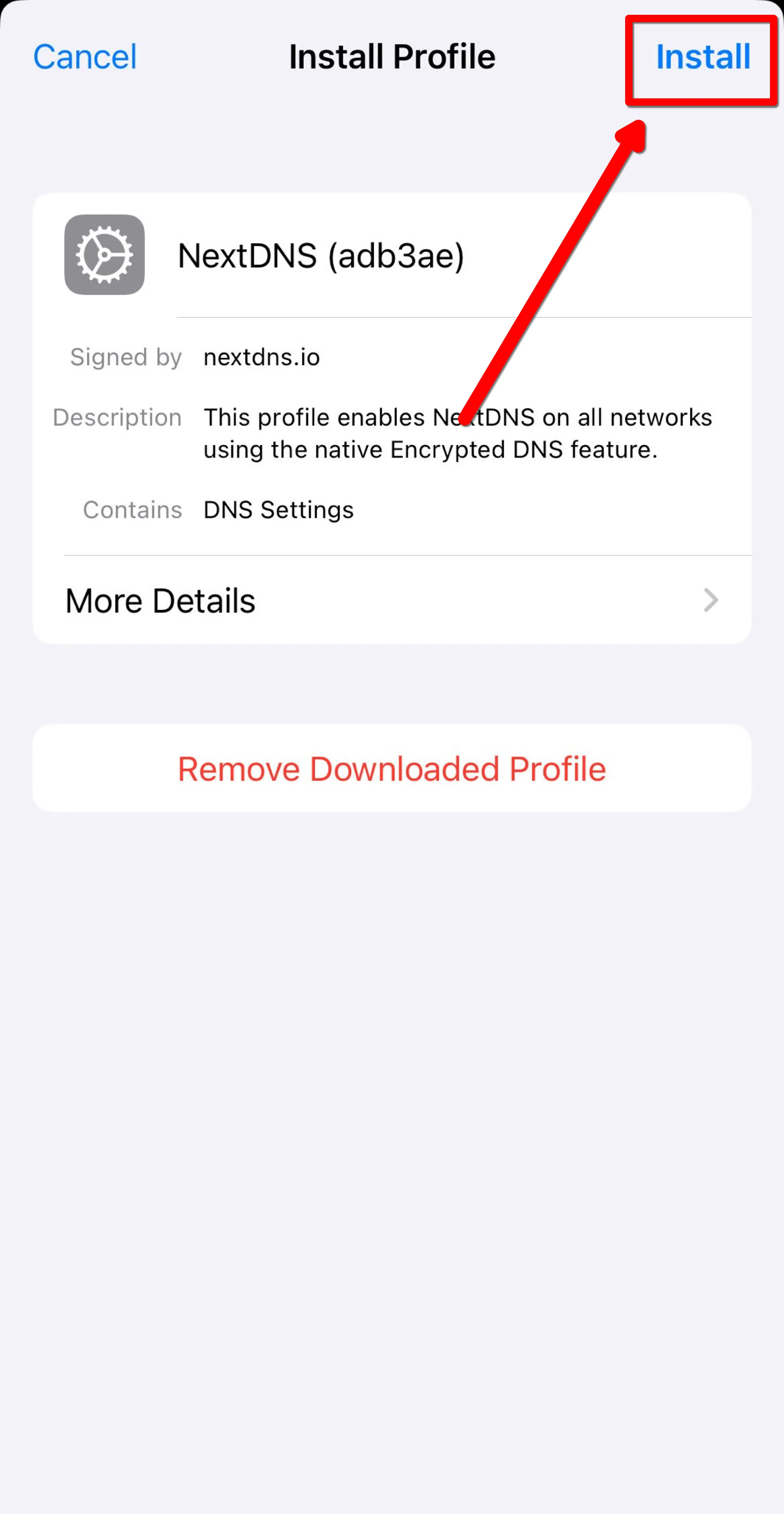
Tap Install in the top right
-
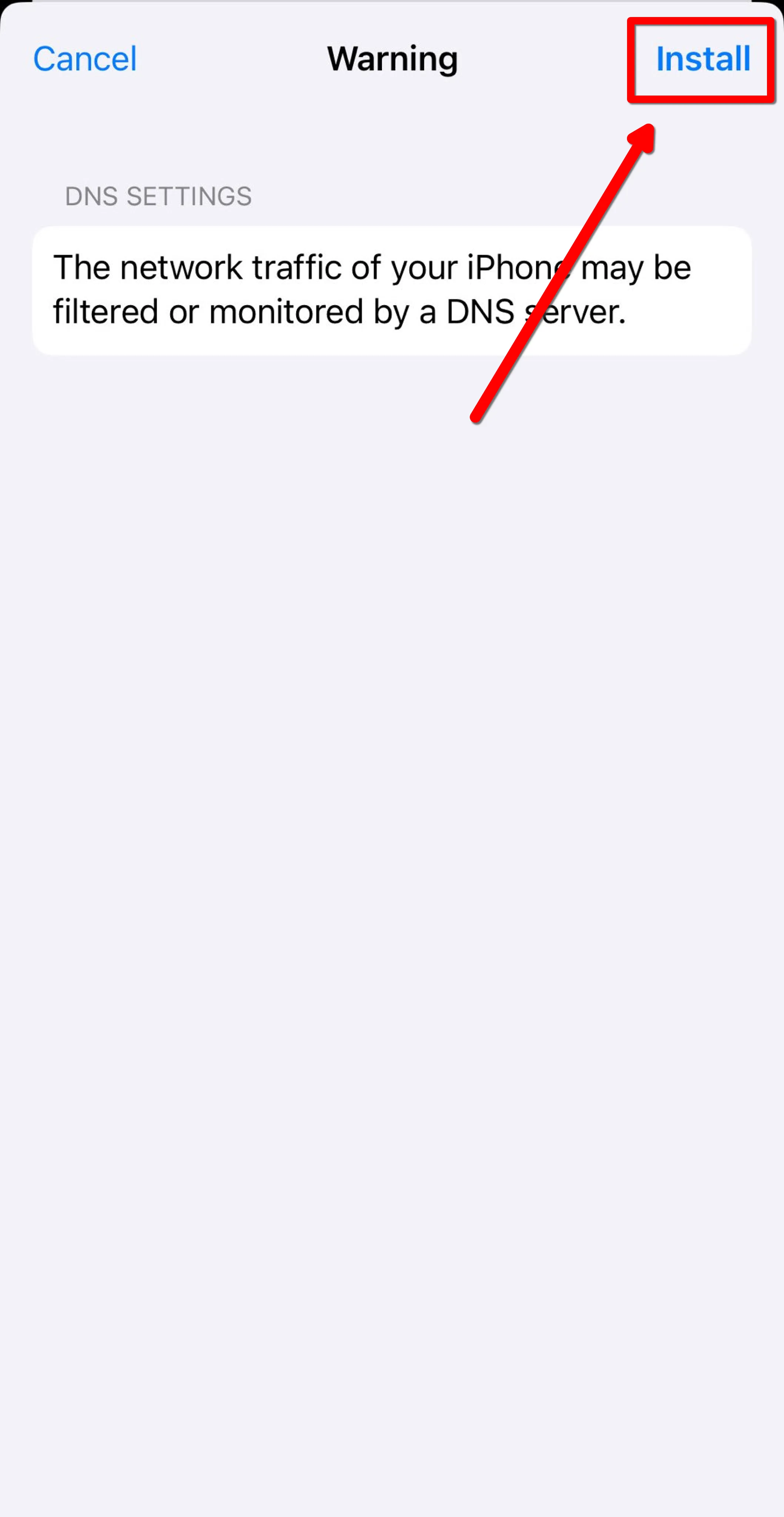
Tap Install again to enable the profile
-
Open the Obscura app
-
Navigate to the Settings tab
-
Under the DNS Server section, enable Use installed custom DNS profile
-
Download your custom DNS profile and open the file, you should see a Profile Downloaded pop-up
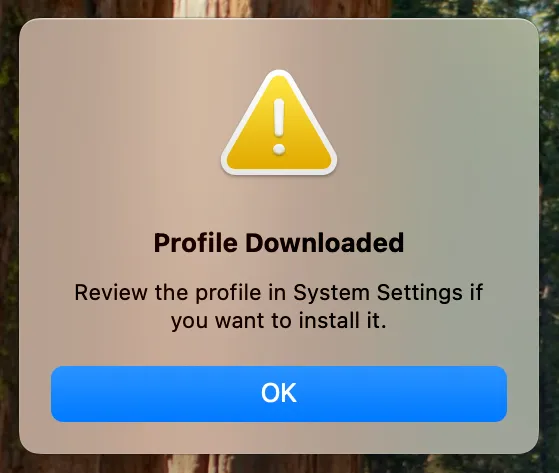
-
In the System Settings app, click Profile Downloaded near the top of the left sidebar, then double-click the profile you want to install
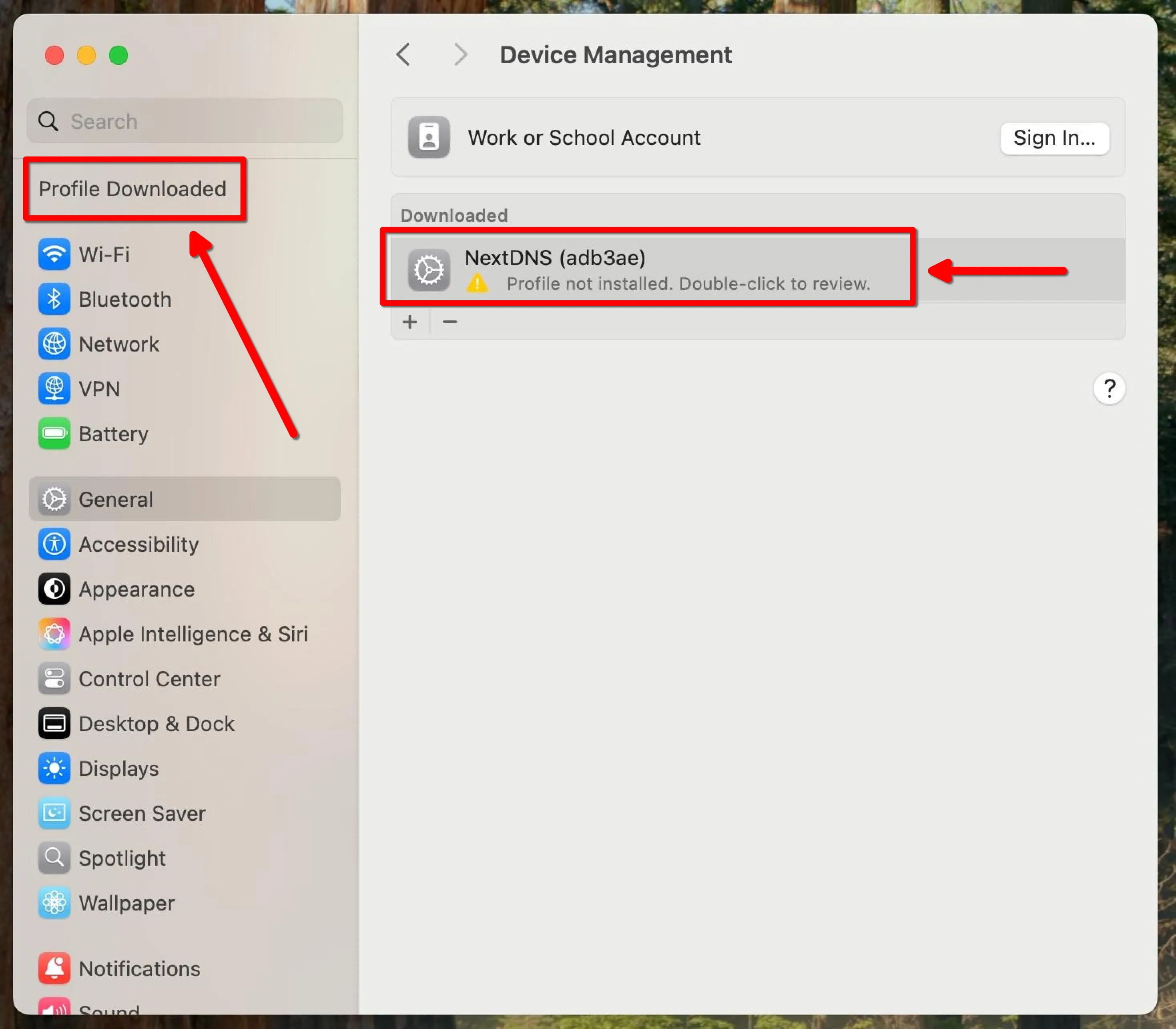
-
Click Install in the bottom left of the pop-up
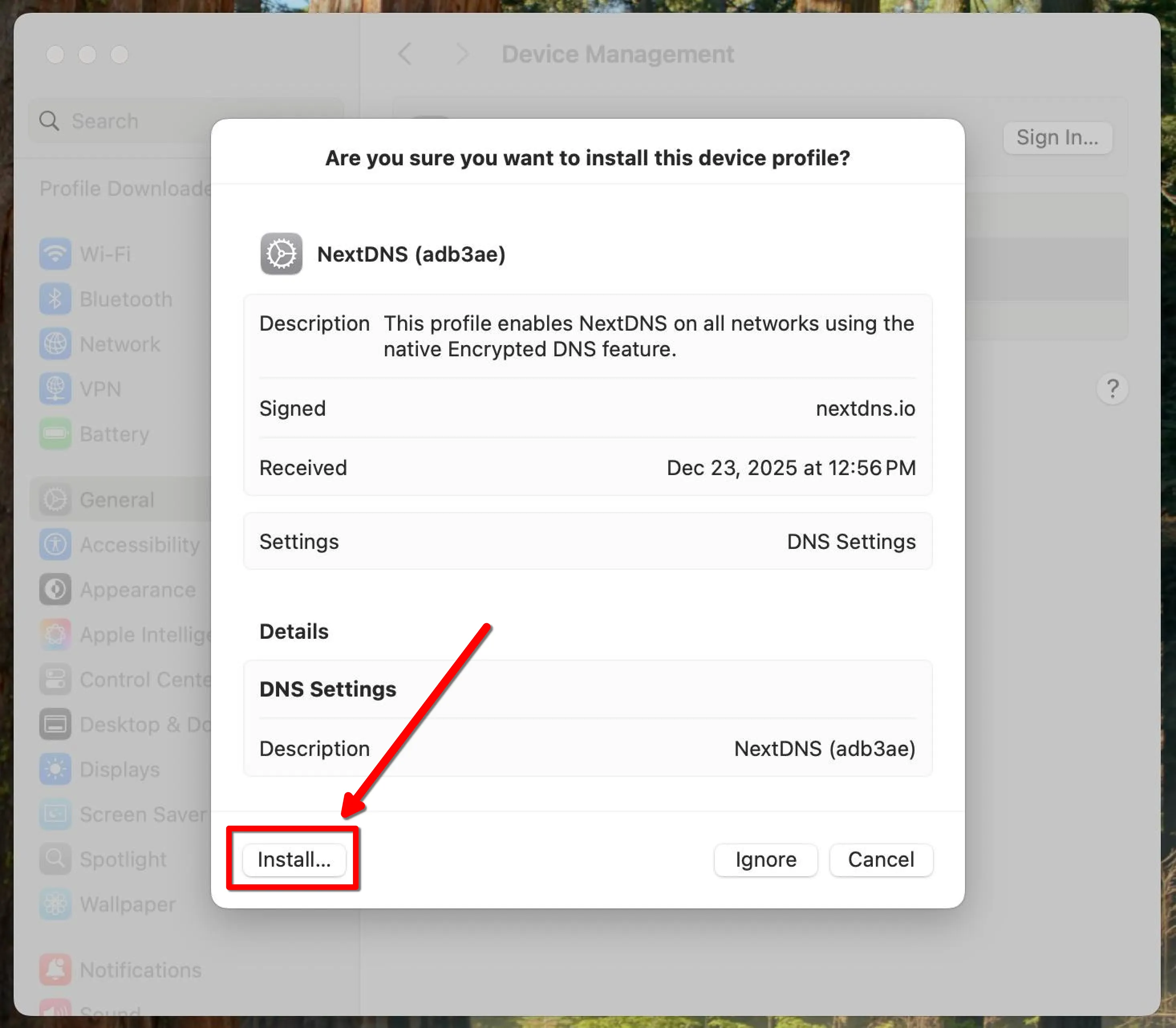
-
Enter your device password to enable the profile
Troubleshooting DNS Issues
Section titled “Troubleshooting DNS Issues”Obscura’s DNS settings may not apply correctly in some situations. The most common causes are apps or operating systems using custom DNS caching or DNS resolution.
DNS Caching
Operating systems and apps may cache old DNS queries which can delay how quickly DNS changes take effect.
If you encounter this issue, we recommend waiting a few minutes.
DNS Resolution (e.g. Browsers)
Browsers often have built-in support for encrypted DNS, which can override Obscura’s DNS settings. To use Obscura’s DNS settings, disable this feature in your browser.
Desktop Browsers
-
Click on the menu button (⋮) in the top right
-
Select Settings from the dropdown
-
Select Privacy and security from the left column
-
Click Security
-
Disable Use secure DNS
-
Click on the menu button (≡) in the top right
-
Select Settings from the dropdown
-
Select Privacy and security from the left column
-
Click Security
-
Disable Use secure DNS
-
Click on the menu button (≡) in the top right
-
Select Settings from the dropdown
-
Select Privacy & Security from the left column
-
Scroll down to the DNS over HTTPS section and select Off
Android Browsers
-
Tap on the menu button (⋮)
-
Select Settings from the menu
-
Tap Privacy and security
-
Scroll down to Use secure DNS and disable it
-
Tap on the menu button (⋮)
-
Select Settings from the menu
-
Tap Brave Shields & privacy
-
Scroll down to Use secure DNS and disable it
-
Tap on the menu button (⋮)
-
Select Settings
-
Scroll down to DNS over HTTPS and select it
-
Tap Off