Using Obscura via WireGuard
Last updated:
If you’re on a platform where we don’t yet have a native Obscura app, you can use the WireGuard app to use Obscura.
If you’re on iOS, macOS, Android, Windows, or a supported Linux distribution, we recommend you use the native Obscura app.
-
On your computer, generate a WireGuard config QR code in your Obscura user portal (more details)
-
On your Android phone, use the WireGuard app to scan the previously generated QR code and add it (more details)
-
Toggle on the WireGuard config and you’re connected to Obscura check connection page (more details)
Step 1: Generating a WireGuard config
Section titled “Step 1: Generating a WireGuard config”-
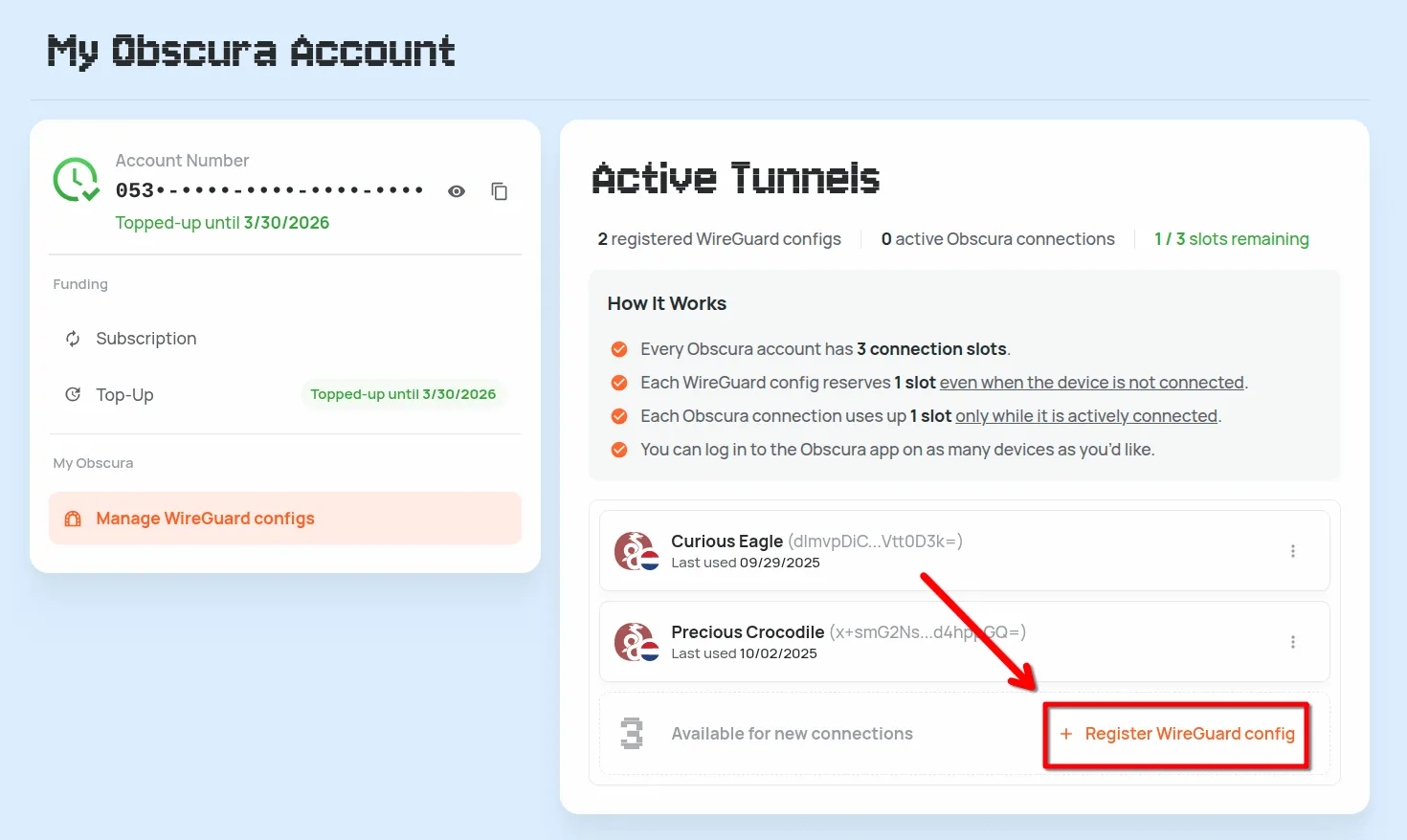
On your computer, open your Obscura user portal and navigate to the Manage WireGuard configs section
-
Under Active Tunnels click Register WireGuard config
-
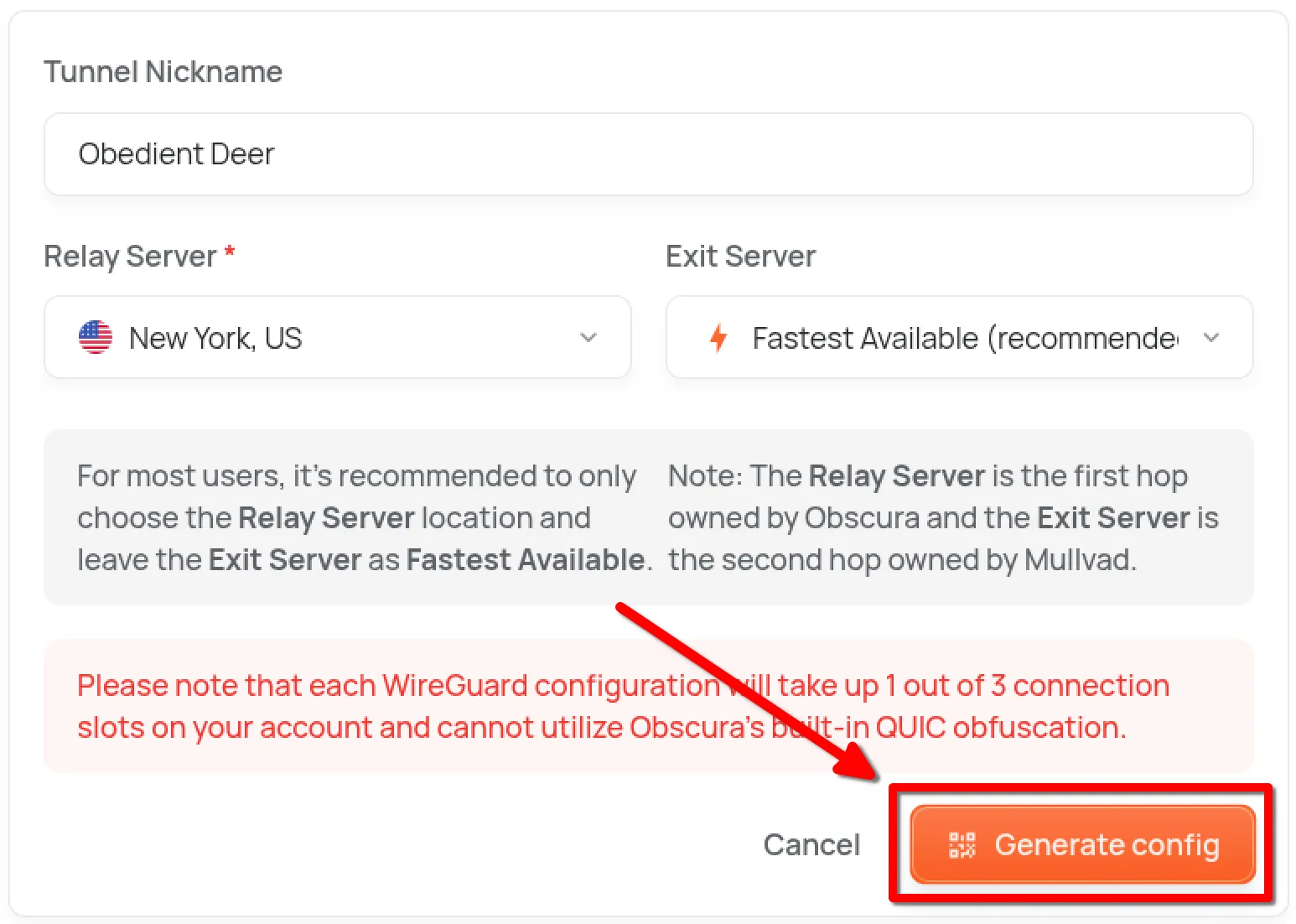
Choose your server location (Relay Server) and optionally an Exit Server then click Generate config
Step 2: Adding the WireGuard config to your phone
Section titled “Step 2: Adding the WireGuard config to your phone”-
Download WireGuard from the Play Store or install the APK directly
-
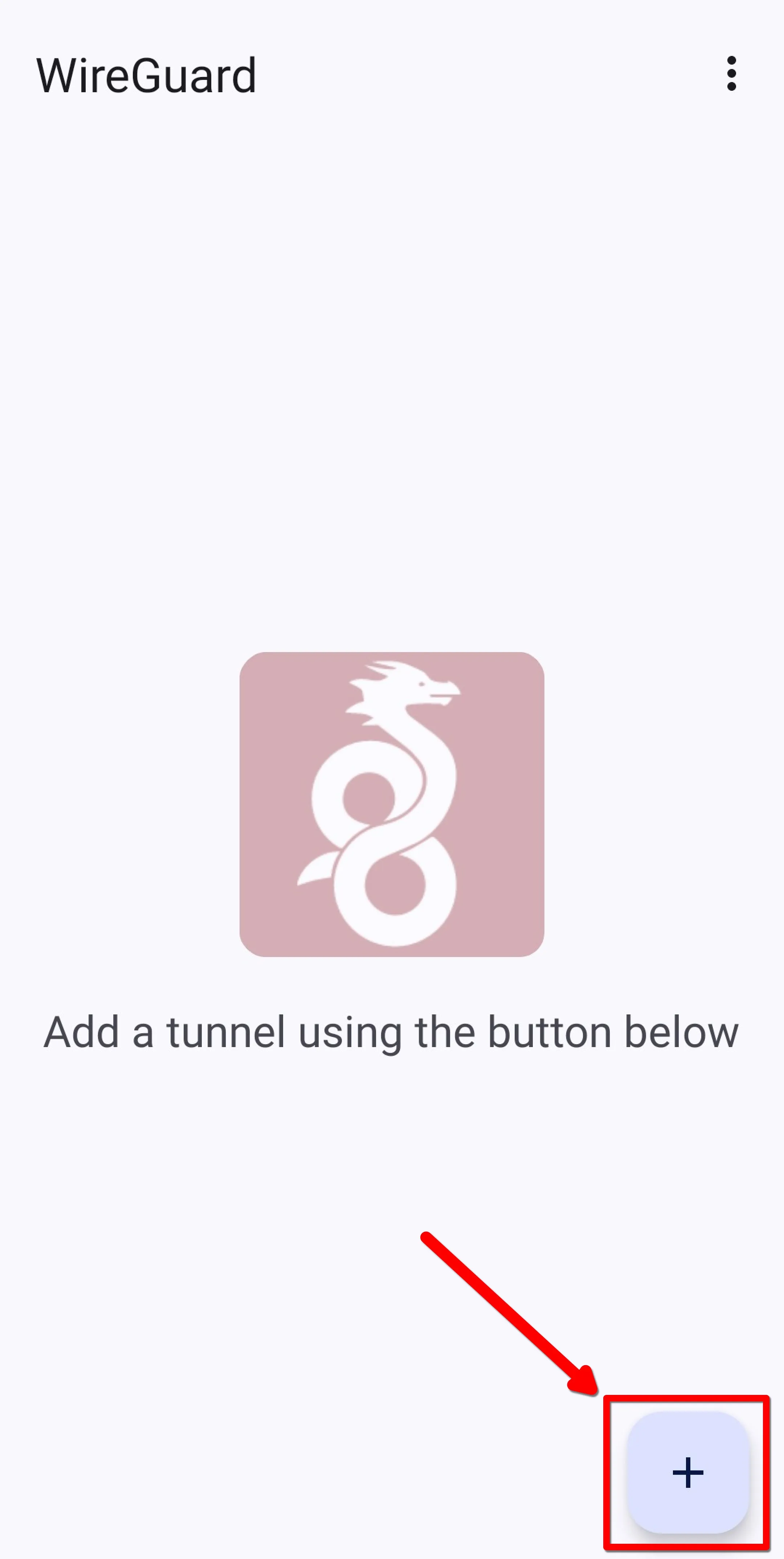
On your Android device, open the WireGuard app and tap the + button in the bottom-right corner
-
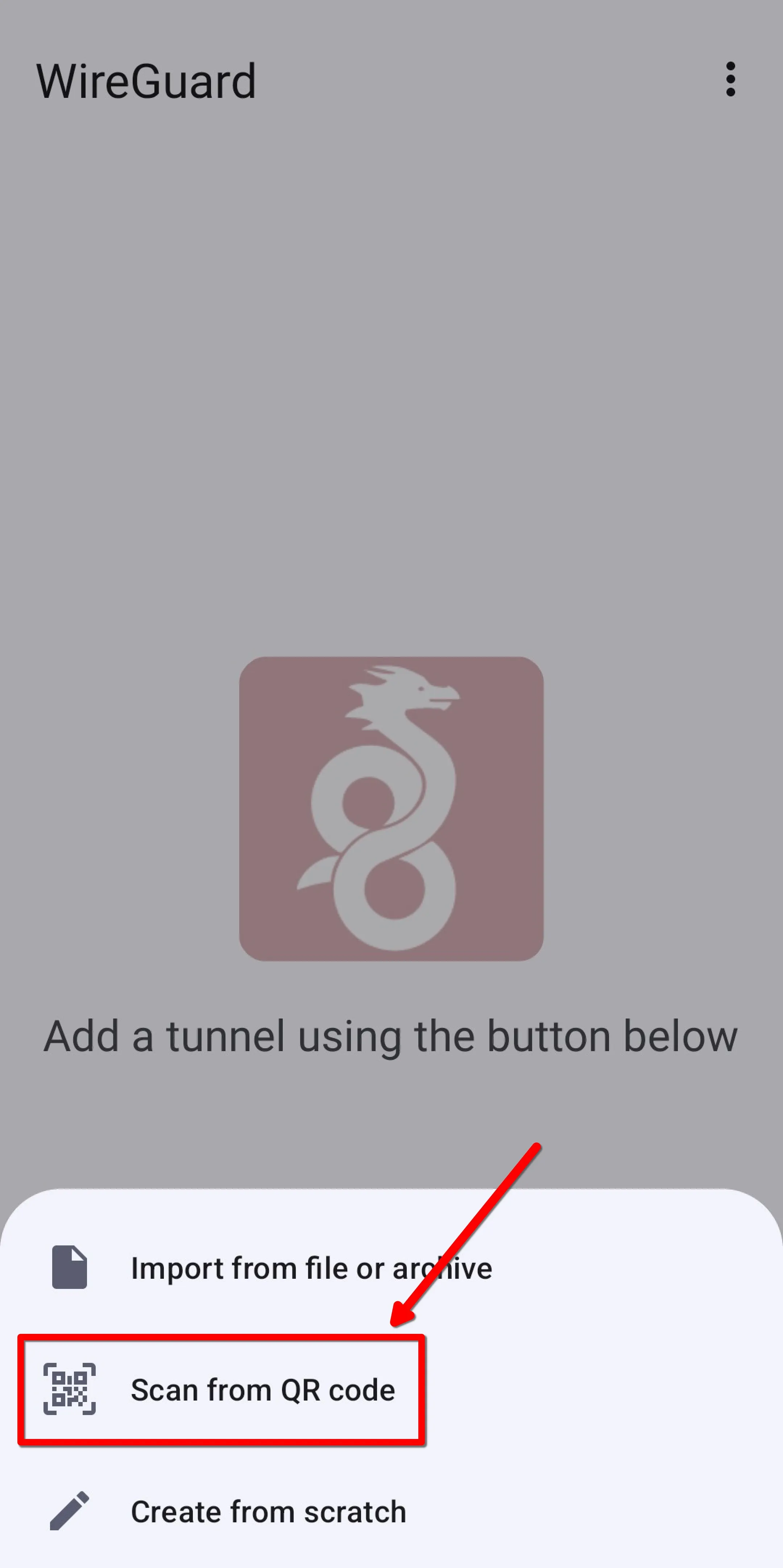
Tap Scan from QR code
-
Scan the QR code you previously generated on your computer
-
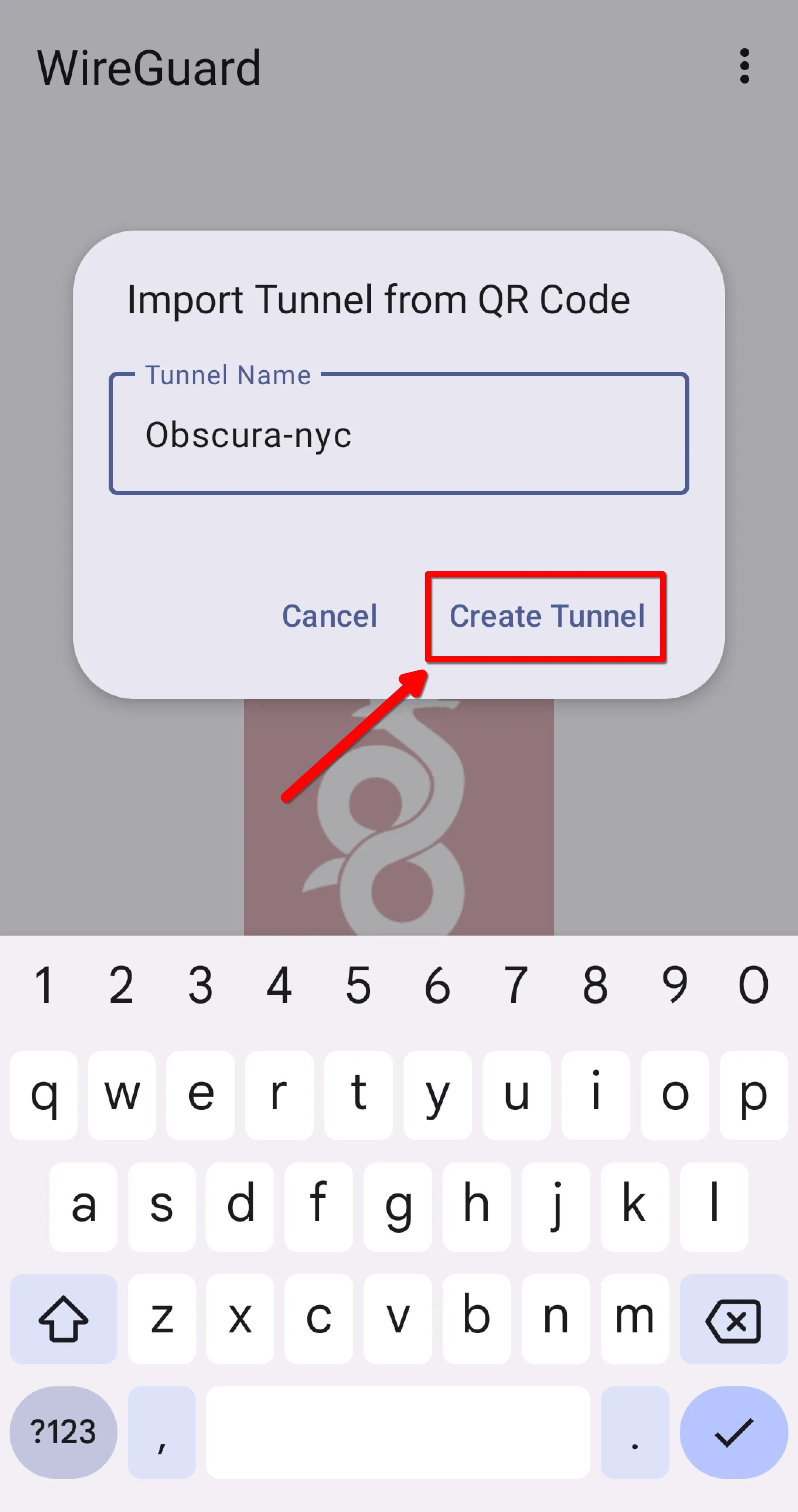
Name your tunnel, then tap Create Tunnel
Step 3: Activating the WireGuard tunnel
Section titled “Step 3: Activating the WireGuard tunnel”-
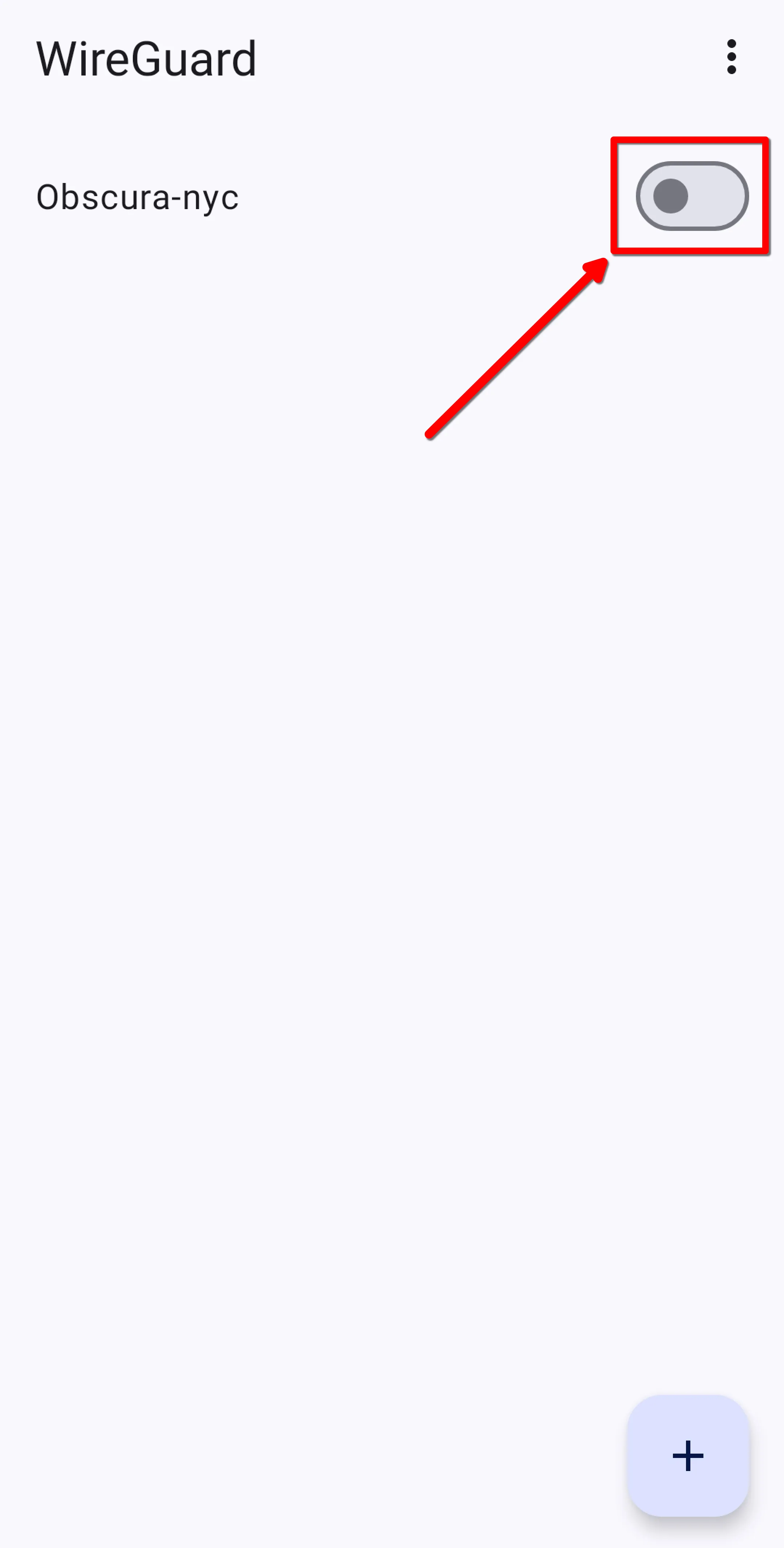
Activate the tunnel
-
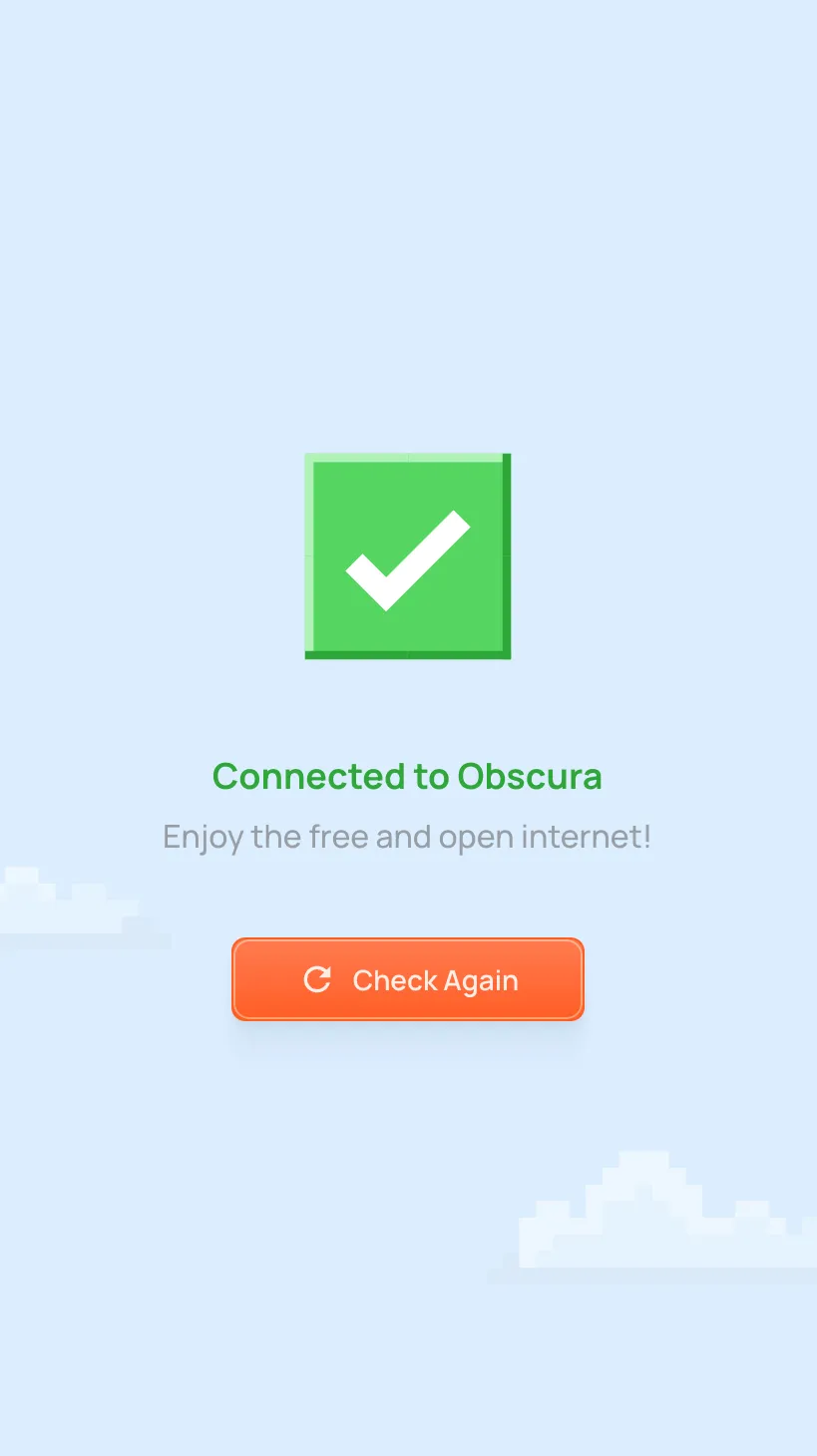
Confirm you’re connected to Obscura on our check connection page
-
On your phone, generate a WireGuard config file in your Obscura user portal and download it (more details)
-
On your Android phone, use the WireGuard app to import the previously generated config file and add it (more details)
-
Toggle on the WireGuard config and ensure you’re connected to Obscura on our check connection page (more details)
Step 1: Generating a WireGuard config
Section titled “Step 1: Generating a WireGuard config”-
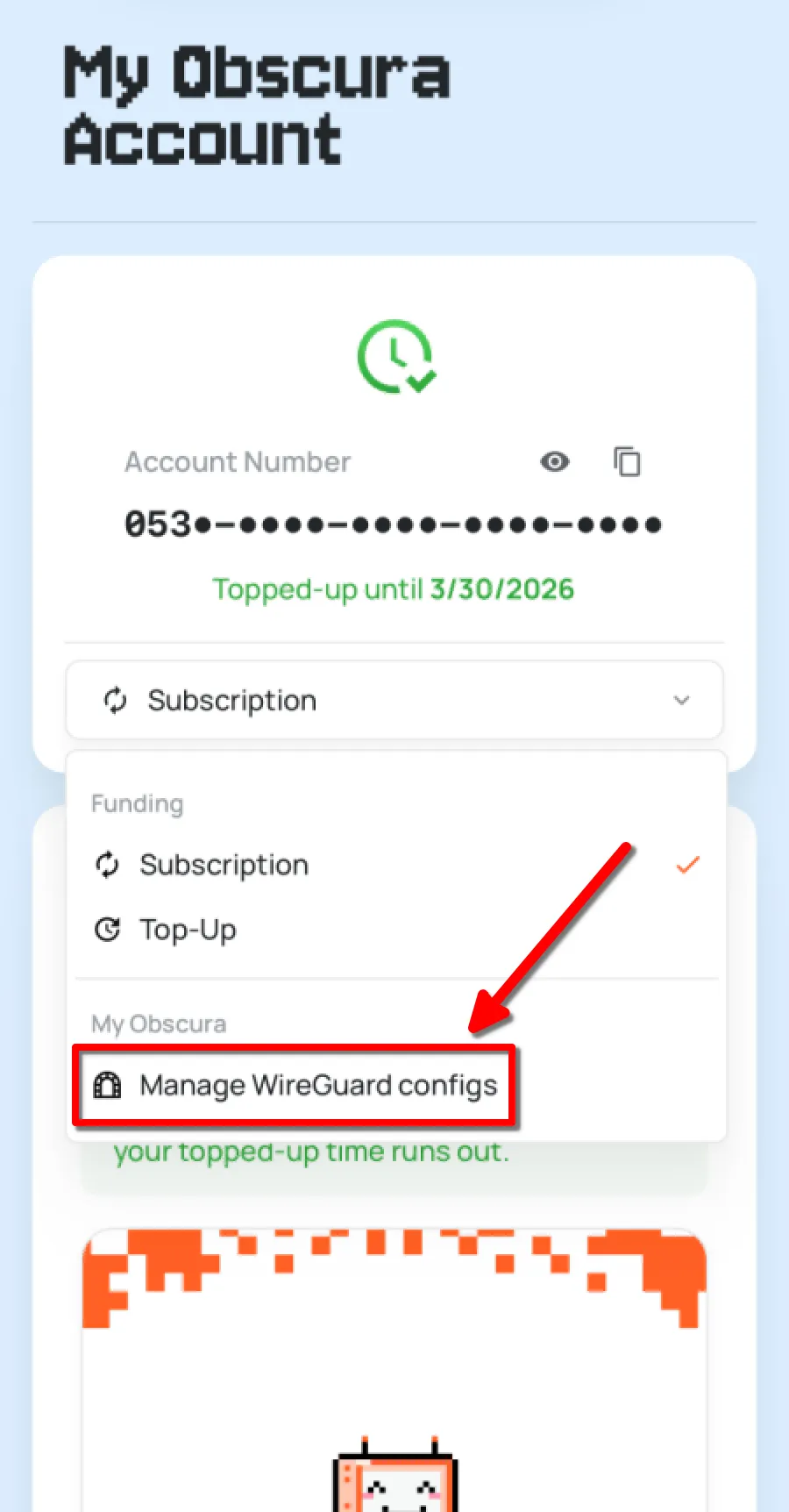
In your Obscura user portal, navigate to the Manage WireGuard configs section
-
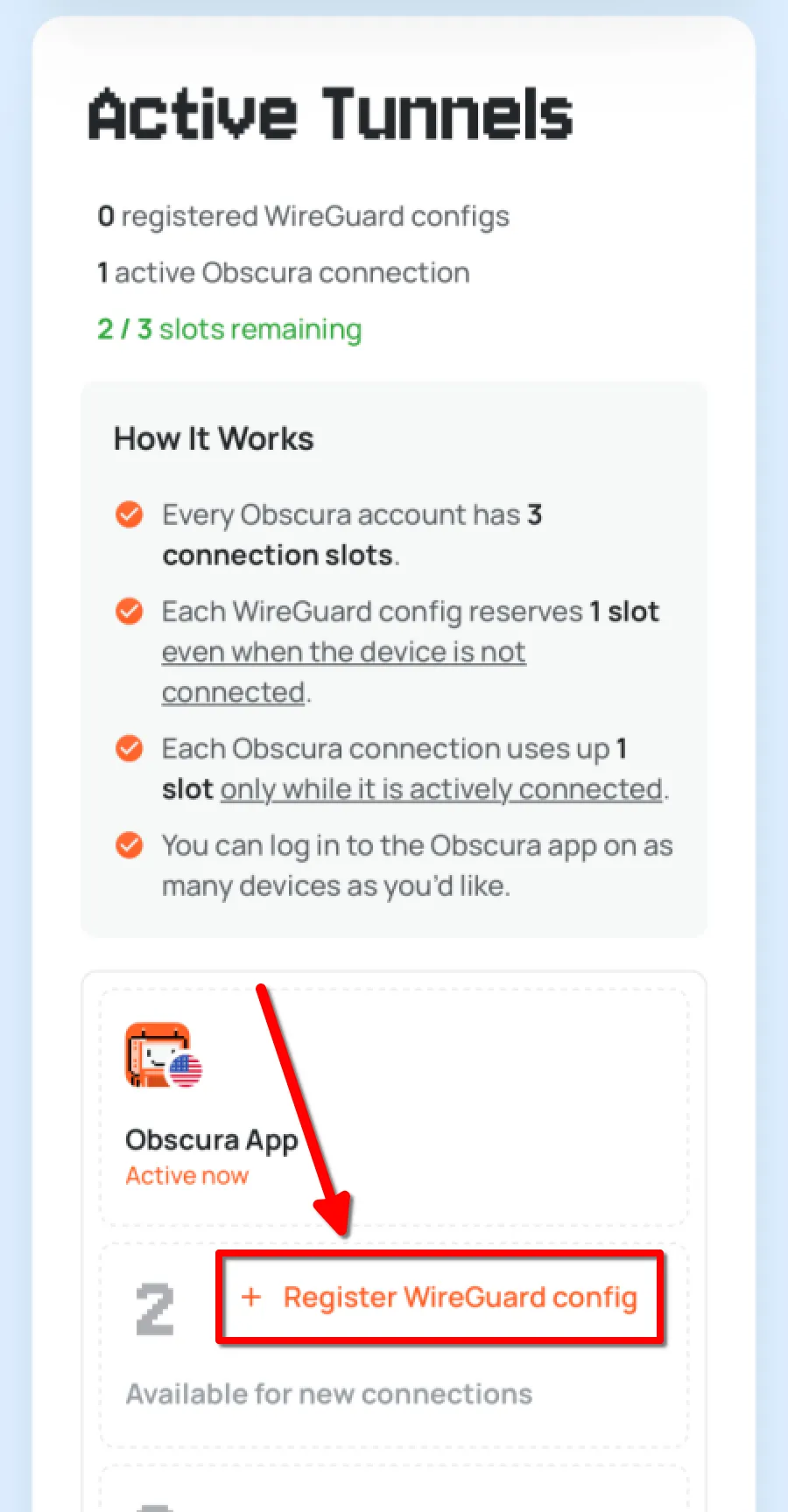
Under Active Tunnels click Register WireGuard config
-
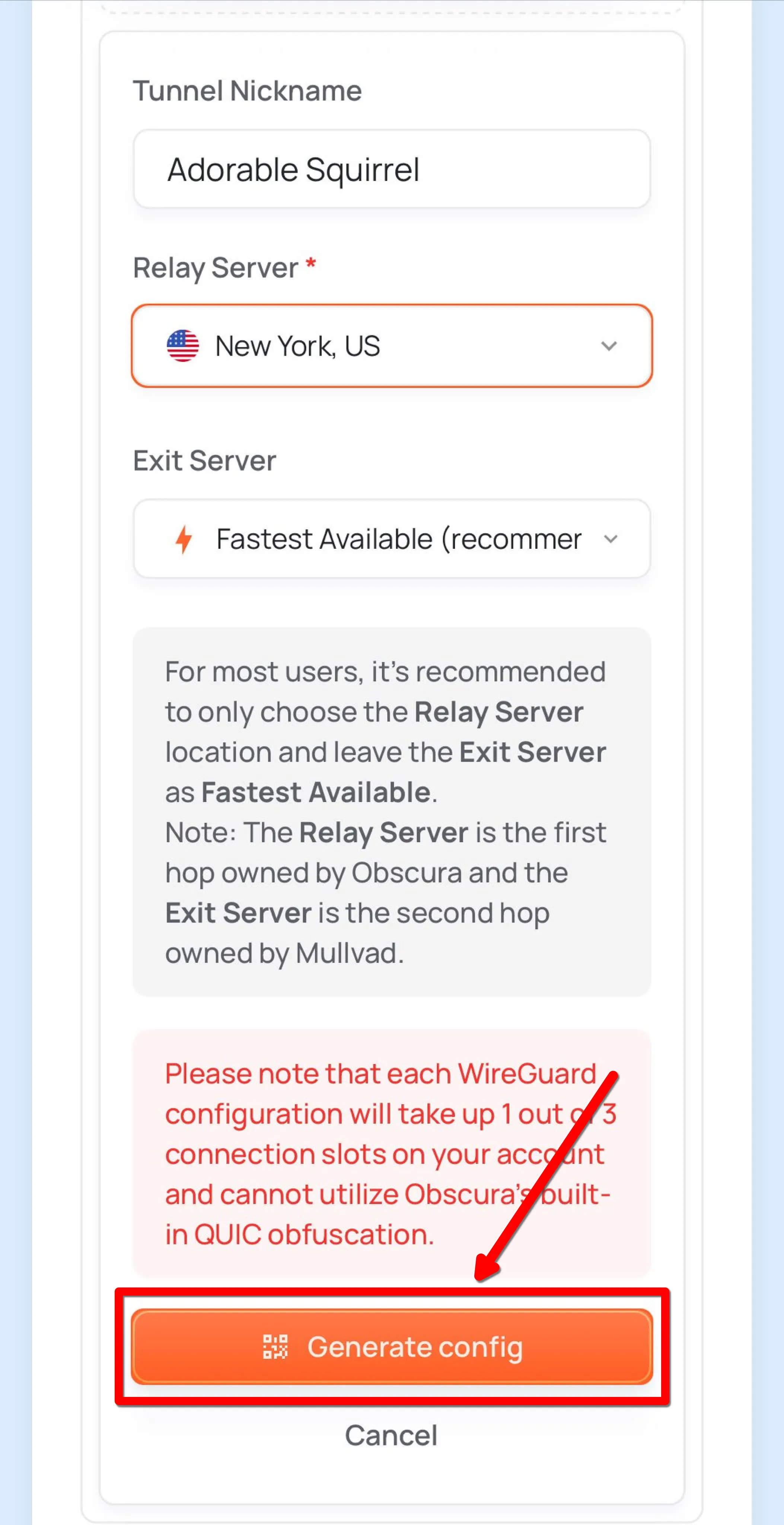
Choose your server location (Relay Server) and optionally Exit Server then click Generate config
-
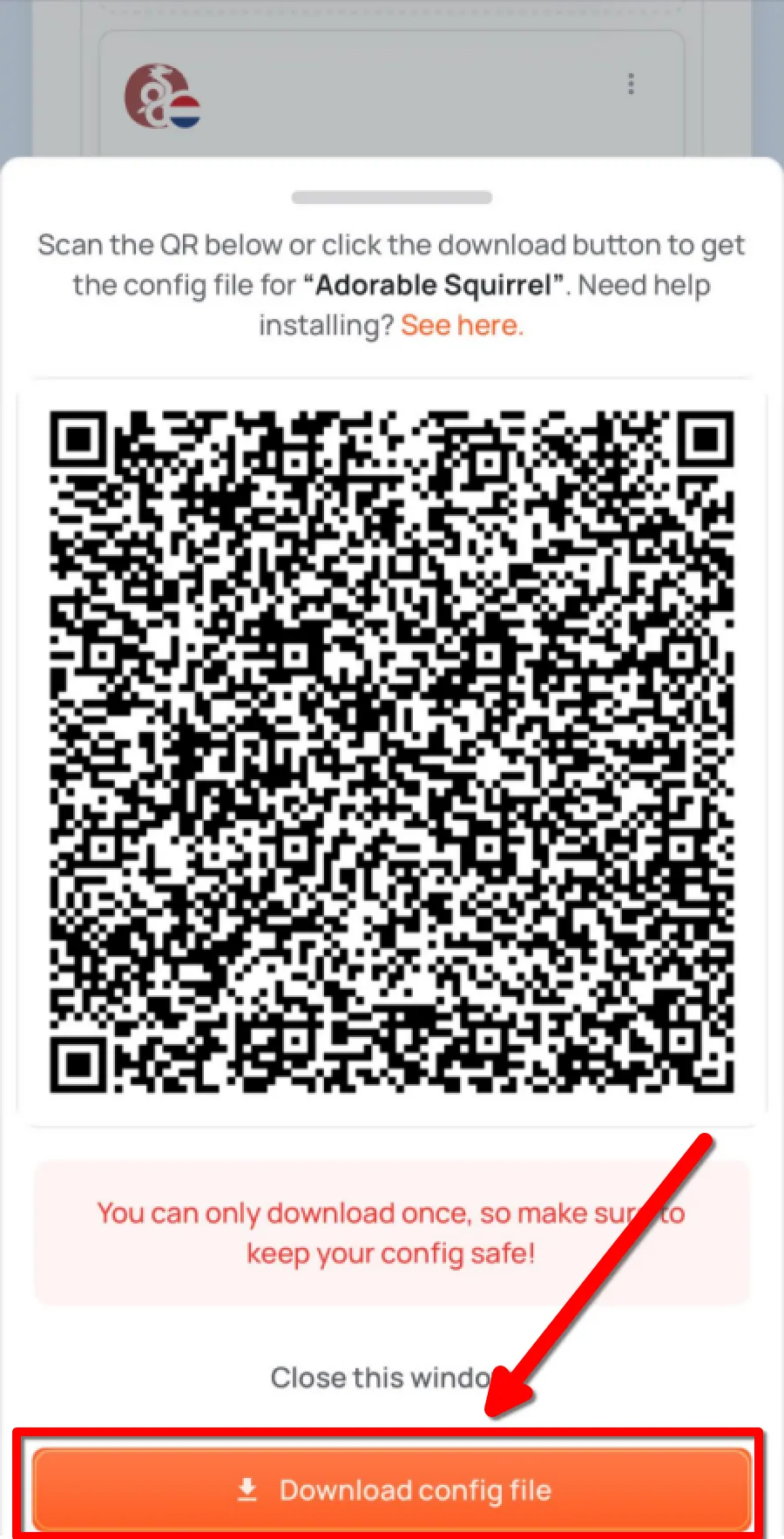
Tap Download config file and save the file to your device
Step 2: Adding the config to the WireGuard app
Section titled “Step 2: Adding the config to the WireGuard app”-
Download WireGuard from the Play Store or install the APK directly
-
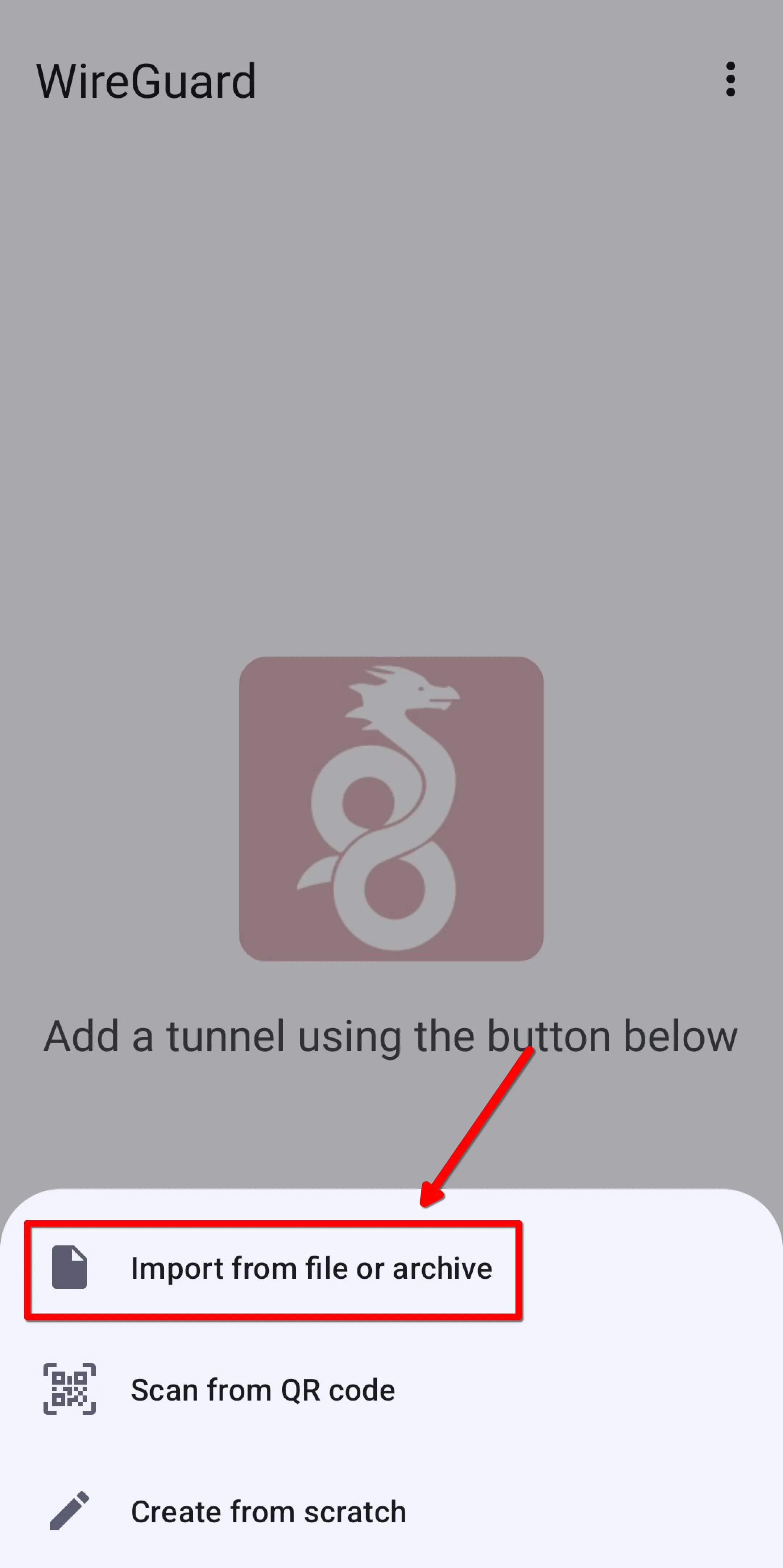
Open the WireGuard app and tap the + button in the bottom-right corner
-
Tap Import from file or archive
-
Select the config file and import it into the WireGuard app
-
Name your tunnel, then tap Create Tunnel
Step 3: Activating the WireGuard Tunnel
Section titled “Step 3: Activating the WireGuard Tunnel”-
Activate the tunnel
-
Confirm you’re connected to Obscura on our check connection page
-
On your computer, generate a WireGuard config file in your Obscura user portal and download it (more details)
-
On your Windows computer, use the WireGuard app to import the previously generated config file and add it (more details)
-
Toggle on the WireGuard config and ensure you’re connected to Obscura on our check connection page (more details)
Step 1: Generating a WireGuard config
Section titled “Step 1: Generating a WireGuard config”-
In your Obscura user portal, navigate to the Manage WireGuard configs section > click Register new config > choose your location (Relay Server) and optionally Exit Server > click Generate config
-
Click Download config file and save it to your computer
Step 2: Adding the config to the WireGuard app
Section titled “Step 2: Adding the config to the WireGuard app”-
Download the latest WireGuard application from their website (direct download)
-
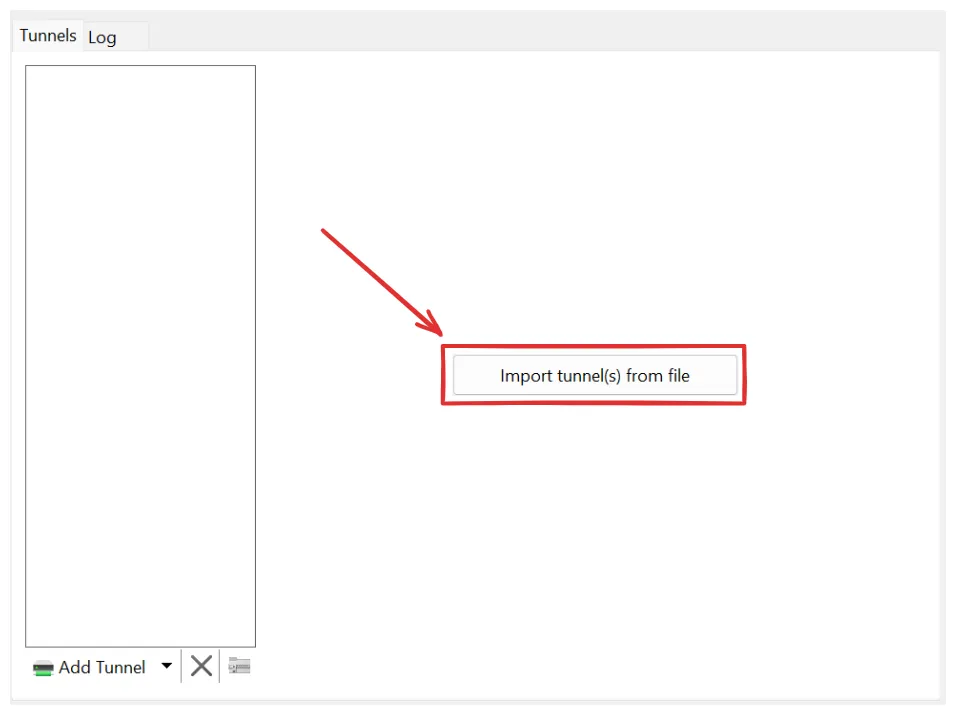
Open the WireGuard application and click on Import tunnel(s) from file in the center of the application, then select your Obscura config file
Step 3: Activating the WireGuard Tunnel
Section titled “Step 3: Activating the WireGuard Tunnel”-
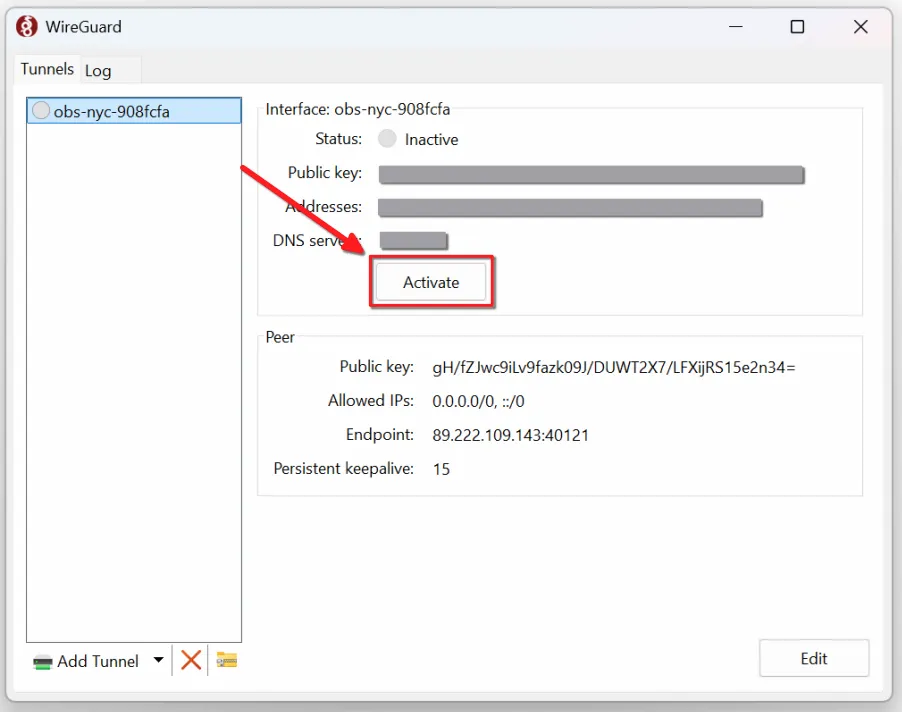
Click Activate
-
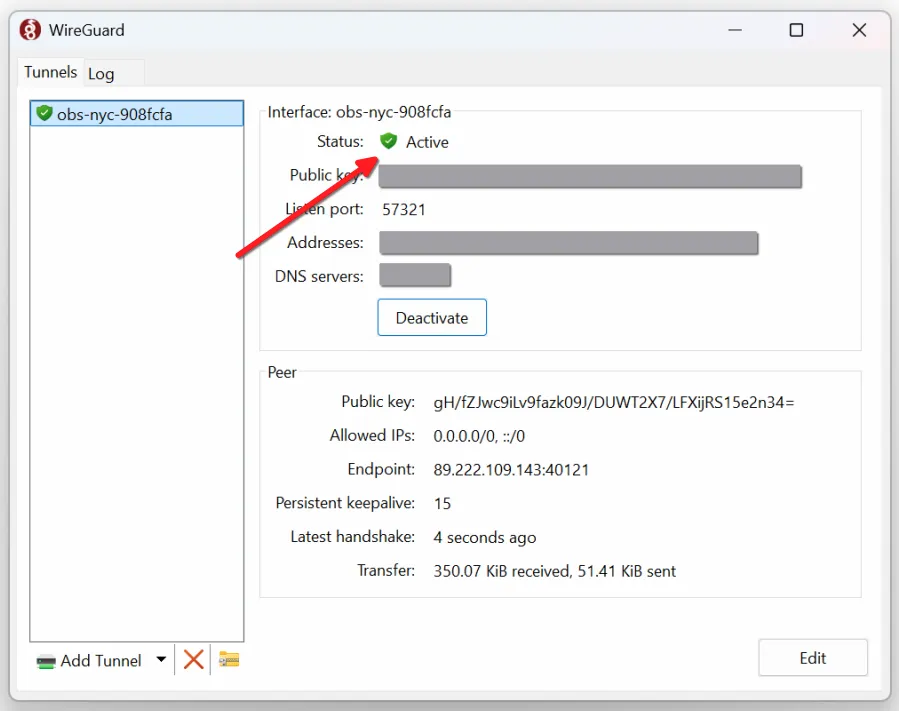
Ensure your WireGuard tunnel is active
-
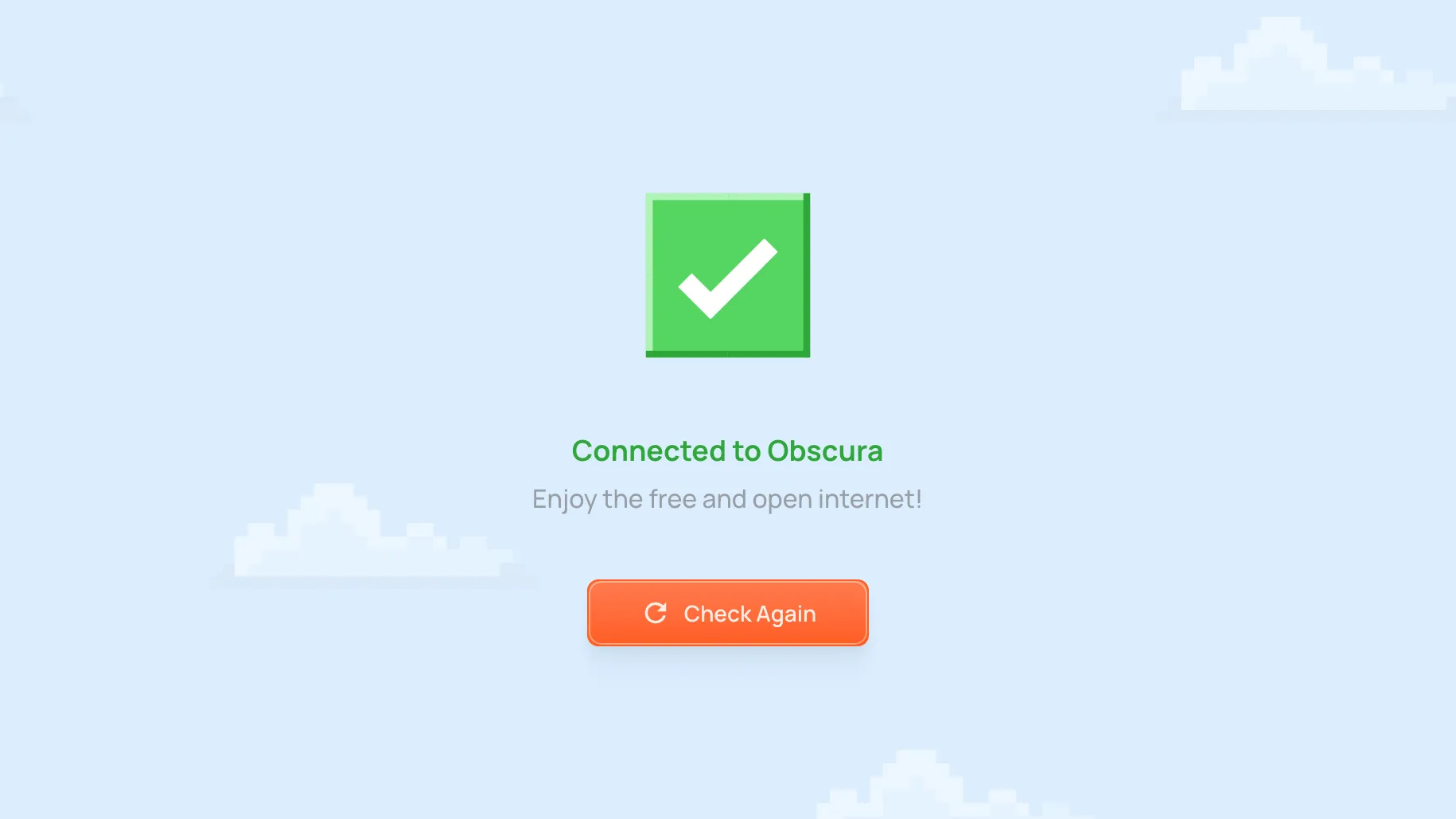
Confirm your connection status on our check connection page
Block Ads and Other Content while using WireGuard
Section titled “Block Ads and Other Content while using WireGuard”Obscura uses Mullvad’s DNS by default. You can benefit from their content blocking features by just pointing your config at the right DNS resolver.
Categories you can block include ads, trackers, malware, adult content, gambling and social media.
-
Open your WireGuard
.conffile in a text editor -
Look for the
DNS =line (it should beDNS = 10.64.0.1by default) -
Change the line to one of Mullvad’s
100.64.0.Xaddresses from Mullvad’s DNS blocking list depending on what you want blocked. For example,DNS = 100.64.0.3blocks ads and trackers. -
Re-import and enable your WireGuard config